


Introduction
In Microsoft Dynamics 365 Business Central, every transaction tells a story. From the moment a sales order is created to the point when payment is received—or from raising a purchase order to settling a vendor invoice—each step leaves behind a digital footprint.
To bring more clarity to this journey, Mindlink Infotech has developed a custom Relationship Map feature for Business Central. This powerful tool allows you to visually trace transaction flows, making it easier than ever to understand how sales and purchase documents are connected.
In this blog, we’ll walk through how Relationship Maps simplify the Sales Cycle, the Purchase Cycle, and why this feature is a game-changer for businesses.
The Business Process Flow
Sales Cycle: Order-to-Payment
The Sales Cycle in Business Central follows a logical progression:
- Sales Order – Captures customer, product, and pricing details.
- Posted Sales Shipment – Records the physical delivery of goods.
- Posted Sales Invoice – Recognizes revenue and tax liability.
- Payment Application – Matches customer payments to invoices, closing the loop in the Customer Ledger.

Purchase Cycle: Order-to-Payment
The Purchase Cycle mirrors sales, ensuring a seamless procure-to-pay process:
- Purchase Order – Creates the initial commitment.
- Posted Purchase Receipt – Records goods received.
- Posted Purchase Invoice – Creates expense and tax liability.
- Vendor Payment Application – Updates Vendor Ledger Entries.

The Relationship Map – A Mindlink Infotech Innovation
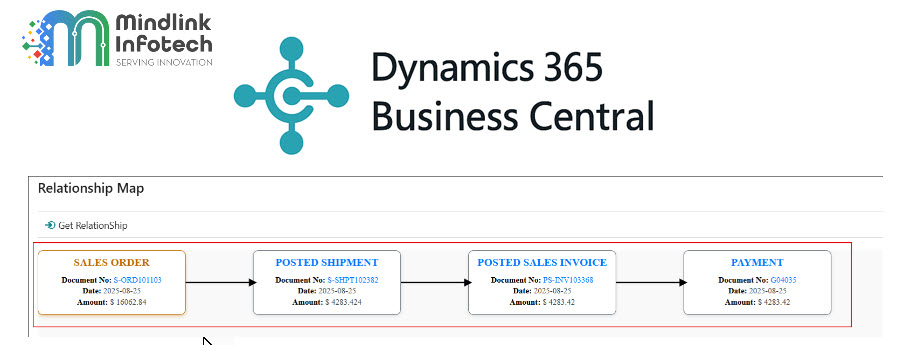
The custom Relationship Map developed by Mindlink Infotech ties the entire process together by providing a visual diagram of linked transactions.
How It Works:
- Open any Sales Order, Posted Invoice, or Shipment.
- Select Actions → Relationship Map.
- Click Get Relationship.
- Instantly, the system generates a transaction flow diagram showing every linked document.
This feature transforms complex document trails into clear, easy-to-navigate visuals.

Key Features of the Relationship Map
- Contextual Highlighting – Highlights partially shipped or invoiced orders.
- Multiple Shipments/Invoices – Shows all related transactions for one order.
- Consolidated Payments – Connects multiple invoices to a single payment node.
- Clickable Links – Direct navigation to Sales Orders, Invoices, or Ledger Entries.

Benefits for Businesses
- End-to-End Traceability – See the entire journey from order to payment.
- Audit Readiness – Simplify documentation for auditors.
- User-Friendly Navigation – Access documents directly from the visual map.
- Error Reduction – Quickly spot missing or pending steps.
Conclusion
The Relationship Map is more than just a visualization—it’s a custom feature built by Mindlink Infotech that brings efficiency, transparency, and control to Microsoft Dynamics 365 Business Central.
Whether you’re a business user tracking open transactions, a finance professional reconciling payments, or an auditor tracing flows, this tool saves time and eliminates complexity.
If you haven’t yet experienced it, try the Mindlink Infotech Relationship Map in your next Sales or Purchase transaction—you’ll see the story behind your data come alive.
contact support@mindlinkinfotech.com for further details.






doxycycline for acne price
doxycycline for acne price
viagra agv reddit
viagra agv reddit
viagra 100mg price
viagra 100mg price
viagra markings
viagra markings
viagra 100 nearby
viagra 100 nearby
cialis muscle pain
cialis muscle pain
acyclovir 800mg dosage per day
acyclovir 800mg dosage per day
xenical generic
xenical generic
ivermectin clinical insights
ivermectin clinical insights
ivermectin safety profile analysis
ivermectin safety profile analysis
minoxidil quick help
minoxidil quick help
avanafil food interaction pharmacological notes
avanafil food interaction pharmacological notes
avanafil pricing effect notes
avanafil pricing effect notes
augmentin vs amoxicillin for dental infections
augmentin vs amoxicillin for dental infections
Alcohol Interaction Documentation
Alcohol Interaction Documentation
how tadalafil compares to sildenafil
how tadalafil compares to sildenafil